Welcome to CV60
An unofficial guide to UTAU (2008)
1 • Before you begin:
1-1 • Introduction & walkthrough
2 • Setting up:
3 • Creating vocals:
4 • UST customisation & usage
4-1 • Using & fitting community USTs
4-2 • Understanding extras & pitches
4-3 • Tuning, flags and rendering
Published in 2026
Last Updated: 24/10/2026
Written & Edited by JOEZCafe
Linktree: https://linktr.ee/joezcafe

1-1 • Introduction & walkthrough:
Welcome to CV60.
In this unofficial web-guide, you will learn how to install and operate the classic UTAU vocal synthesizer, originally released in 2008.UTAU is a free, shareware vocal synthesizer that allows users to create digital vocals using compatible voice databases created by members of the software's community as well as record and produce your own with no license required.In particular, this guide details the process of:
• Installing UTAU.
• Installing voicebanks of the user's choosing.
• Understanding the structural differences between voicebanks.
• Producing project files for a selection of common voicebank types.
Some things you should know:
In no small part to the open-ended nature of UTAU and its associated software, there are some additional clarifications that must be reviewed before proceeding with this guide.• As mentioned prior, CV60 is a guide specifically written for the original "UTAU" software by Ameya, released in 2008.
The utility of this resource may vary when using any adjacent software, including OpenUTAU, UTAU's unofficial open-source successor released in 2021.• CV60 was written with users of Windows in mind and its utility may vary with UTAU's MacOS equivalent, "UTAU-Synth".• On its own, UTAU is only compatible with traditional, sample-based voicebanks created with UTAU in mind.
For AI-based UTAU vocals (ie. Diffsinger), please utilise OpenUTAU and consult a separate resource.• At this time, CV60 is not a resource for voicebank creation or configuration.• CV60 is written by UTAU fans, for UTAU fans and has no affiliation with the UTAU software or its creator, nor does it accept any responsibility for damage or harm.
If you're ready to get started, click the house below to return to the table of contents.


2-1 • Installing UTAU:
You can download UTAU by clicking Here
Downloading the latest version of the editor at the top of the page is recommended.
Troubleshooting: Did your antivirus detect something wrong with the download?
Don't fret. This is an extremely common occurance when downloading UTAU, the software is very old and most Windows-based antivirus software frequently report false-positives when directly downloading .exe files.The link provided is the official download page for the UTAU software, hosted by the original creator, so as a community, we guarantee this download is genuine and safe.
Changing system locale:
An important step that must be carried out before running the installation of UTAU is changing the locale of your system.Even when using the English version of UTAU, the software requires a Japanese system locale in order to clearly display Japanese characters, this is because UTAU is a Non-Unicode program, meaning the software only shows characters from the primary locale the system is set to.System Locale is different to System Language.In this process, we're NOT setting your entire PC's interface language to Japanese.
We're changing the LOCALE, which is the set of characters Non-Unicode programs can render on your system.
Fortunately, the Japanese system locale still renders roman characters and most modern software supports Unicode, meaning English text will continute to display just fine on your system.Do note that some incredibly small and niche outliers can occur from this change, but that are ultimately nondestructive and reversible, particularly with the file structures of retro video games.Note: Changing your PC's system locale requires restarting Windows, please ensure you are prepared to do so before changing this setting.Follow these steps to change your System Locale:
• Go to the Start menu of your PC and search for "Control panel".
• When Control Panel is opened, select "Clock and Region", followed by "Change date, time or number formats".
• A new window will open, on this window, navigate to the "Administrative" tab.
• On the Administrative tab, select the button that reads "Change system locale...".
• Another new window will appear, open the drop-down list for "Current system locale:" and set it to "Japanese (Japan)".
• Restart your system.
Installing UTAU:
UTAU's installation .exe takes you through a traditional installation wizard.
The installer itself has not been localised, so all builds, including English ones show a Japanese installation wizard.The installation wizard first opens with a choice of two installation methods.
• The first option (R) installs UTAU in its default pathing, your "Program Files (x86)" folder.
• The second option (M) allows you to manually specify the install location. UTAU is not required to be installed in a specific directory and can even be installed portably via. an external drive.Once you have selected your ideal option, continue to the next prompt by selecting Option (F) in the bottom right corner of the window.
UTAU will proceed to install on your system.
Once installation is complete, a new prompt will appear, simply select Option (C) in the bottom right corner of the window to close the installer, you are now free to delete the installer should you wish to.
A desktop shortcut should be available upon installation, but if not, simply navigate to UTAU's install location.
If you selected Option (R), the path is:Local Disk (C:) > Program Files (x86) > UTAUThen boot UTAU.exe.You will be immediately placed in a blank project file, project files in UTAU are known as "UST files".
Congrats, you have successfully installed UTAU <3


2-2 • Installing a voicebank:
A "voicebank" refers to the singers in a vocal synthesizer.
By default, UTAU comes preinstalled with the vocalist "Uta Utane", also known as "Defoko", but any voicebank produced by a member of the UTAU community can be installed and used.Voicebanks come with a variety of features, languages and formats, but this section will go over the universal process of installing any voicebank onto UTAU.When sourcing a voicebank, do note that there is no universal "hub" that hosts UTAU voicebanks and they are hosted independently by their respective creators.That said, there are an array of community databases that link to these respective hosts:• UTAU Fandom Wiki
• UTAU Wiki 2.0 - Wikidot
• UTAU Repository - Miraheze
Please also note that by downloading and utilising an UTAU voicebank, you agree to the Terms of Use / Guidelines detailed by the voicebank's creator on either the "readme" file contained within the voicebank or on the voicebank's hosting page, these commonly contain details for prohibited usage, commercial licensing, etc.
Unzipping & pathing:
Voicebanks are commonly distributed as ZIP folders, begin by extracting the contents into a standard folder in order for UTAU to process the voicebank.Then, locate UTAU's installation directory and place the standard folder into the "voice" subfolder within UTAU's directory.
If you opted for a standard installation of UTAU, the path should be:Local Disk (C:) > Program Files (x86) > UTAU > voice

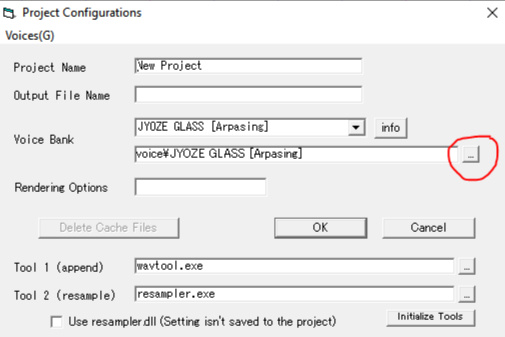
Open the UTAU editor and navigate to
Project > Project Property
from the toolbar to open the "Project Configurations" window (Pictured Left).Open the "Voice Bank" drop-down list and select the name of the voicebank you would like to use in this project file.
Once the voicebank is selected and you select "OK" from the menu, you will be using that voicebank in your project file.The thumbnail in the top left corner of UTAU's interface should change to reflect your selected voicebank.

Troubleshooting:
Refer to these necessary steps if your voicebank of choice is not available from the Voice Bank drop-down list.

• If UTAU was already open while you were managing the voicebank folder, return to the "Project Configurations" window, then select
Voices > Reload Voice Bank
to refresh the listing.
• Check that the root folder of the voicebank is accessible from the "voice" folder of UTAU's directory.
In other words, ensure that after entering the "voice" folder that there is only one additional folder between that location and the assets of the voicebank.
Example:
UTAU > voice > [Voicebank Folder]
This path works as the voicebank assets are one folder away from "voice".
UTAU > voice > [Voicebank Folder] > [Voicebank Folder]
This path does not work as there is an additional folder in the path.
Alternate Method: Manually pathing voicebanks
If none of the above troubleshooting methods work to successfully load from your voicebank directory, or you would prefer to store voicebanks elsewhere, you can also load voicebanks manually from anywhere in your local storage via. the following steps:• Select the ellipsis (...) button next to the Voice Bank pathway box.
• On the subsequent file explorer window, navigate to the location of the voicebank you wish to use and enter the root of the extracted voicebank folder (ZIP folders will not be compatible).
• Simply press Open once you have accessed the voicebank's root folder.
• Your project file will now source the voicebank from the path you have designated.
You have successfully installed a voicebank onto UTAU.


2-3 • Recommended tools:
Akin to other software, UTAU is customisable and supports external plugins to streamline its functionality and accommodate different users.
This section goes over a series of optional tools and functions that are not a requirement to use UTAU, but are worth considering to make utilising the software more clean and straightforward.
Microsoft IME - Japanese keyboard setup
Not a plugin for UTAU specifically, but useful nevertheless.
Microsoft IME is a Japanese keyboard utility for Windows that allows users with romanised keyboards to type Japanese Kana characters.The majority of Japanese voicebanks for UTAU are configured with "Kana-Aliasing", meaning notes can only retrieve samples from a Japanese voicebank if the entered lyric is done so in Kana, as opposed to Romaji (Romanised formatting of Japanese characters).For example:
[ り ] - Accepted by Kana-Aliased UTAU voicebanks, producing a "ri" sound.[ ri ] - Not accepted by Kana-Aliased UTAU voicebanks, will not retrieve the sample and as such, will not produce any sound.
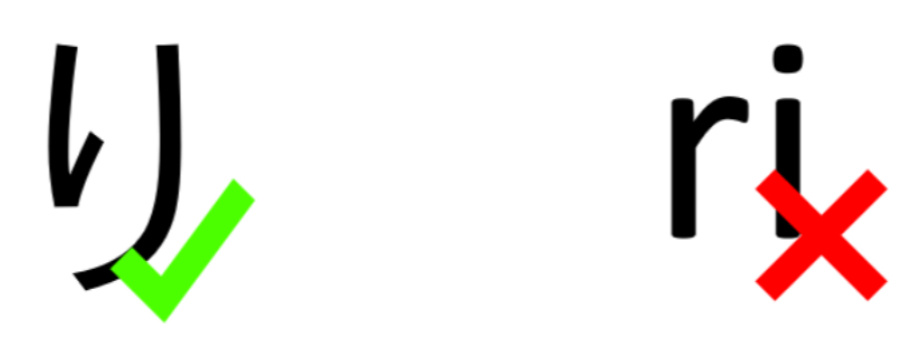
There are multiple methods of entering Kana, including plugins that batch-convert the lyrics of a file, but this subsection will illustrate manual entry using Microsoft IME.

1. Open the Start Menu on your computer and navigate to Settings.
Once Settings is open, navigate to Time & Language, then select the Language tab.
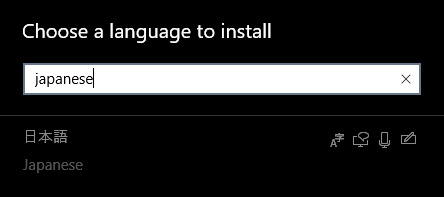
Scroll down until you see Preferred Languages, then select Add a language.
2. Locate "Japanese" to install the Japanese keyboard on your computer.
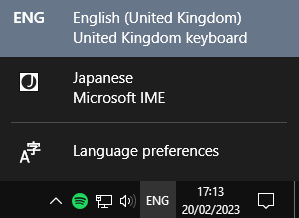
3. On the taskbar, you should have an indicator that shows your current keyboard language, select this to toggle between your native keyboard and Japanese.
4. When Japanese is selected, a Capital A will appear to show you are currently using the Japanese keyboard's Roman Character Entry.
While typing, right clicking on this symbol and selecting Hiragana,
or pressing ALT + Back Quote [`] on your keyboard will toggle between this setting and Kana Entry, changing the Capital A into [ あ ]


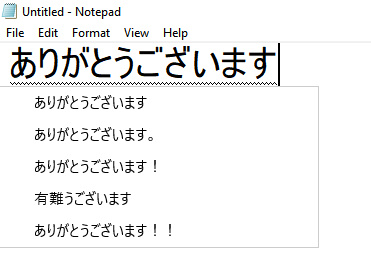
5. While in Kana Entry, typing a Japanese syllable in Romaji will format it in Hiragana.
- Typing "a" produces "あ"
- Typing "ka" produces "か"
- Typing "nn" produces "ん"
Alternate samplers - The renderers of UTAU
Samplers are external software UTAU prompts whenever you press Play on your project file, the Sampler boots, reads your file and produces an audio output.
UTAU by default utilises "Resampler", but alternate samplers are available that prioritise different frequencies in order to produce different levels of "Tone" and "Cleanliness" on individual voices, with Resampler being known for its bright, artificial sound.
Additionally, different samplers can contain their own exclusive parameters that allow users to customise voicebanks in unique ways.Experimenting with multiple samplers to find the ideal one for each bank is recommended (or simply referring to a voicebank's download page, should the author personally recommend a sampler).
To demonstrate the contrast between Resampler and other samplers available, this guide will walk you through the installation of Kanru Hua's Moresampler, which has a consistent, clean, "full-bodied" output that works with naturally toned voicebanks that do not rely on an artificial/robotic effect.
Should you wish, you can download Moresampler
by clicking Here
Moresampler was created and developed by Kanru Hua, this download is a free distribution of abandonware software,
no longer supported by its original creator.
Demonstration - Installing and using Moresampler
• Unzip the folder containing Moresampler.exe, and place it somewhere on your computer that is easy for you to remember and locate.• In the UTAU editor, open the Project Property menu while your project file of choice is currently open.• Ensure that "Use resampler.dll (Setting isn't saved to the project)" is unchecked.• Using the "..." buttons on the far right hand side, set the pathways for both "Tool 1 (append)" and "Tool 2 (resample)" to Moresampler.exe's location on your computer.
Note: Not all samplers are pathed this way with some only acting as your Tool 2,
read any documentation or webpages contained with other samplers for more info.

• If the process has been carried out correctly, a different window with different processing text should appear when you press Play on your project, this shows that UTAU has prompted a different sampler to render your vocals, changing the tone and clarity of your output.

IroIro2 - UTAU's "Swiss Army Knife"
IroIro2 is a multi-plugin interface containing a set of convenient functions for UTAU, including, but not limited to:
• Converting notes between Romaji & Hiragana
• Converting notes to different voicebank formats
• Applying lyric changes (ie. Suffixes) to multiple notes at once
You can download IroIro2
by clicking Here
To install IroIro2, extract the contents of the ZIP folder and place the resulting folder into the Plugins folder of your UTAU directory.
By default, the path should be the following:
Local Disk (C:) > Program Files (x86) > UTAU > plugins > iroiro2
Unlike installing voicebanks, the plugins folder does not require the plugins to be visible in the root, so the contents can be placed in a "iroiro2" subfolder.
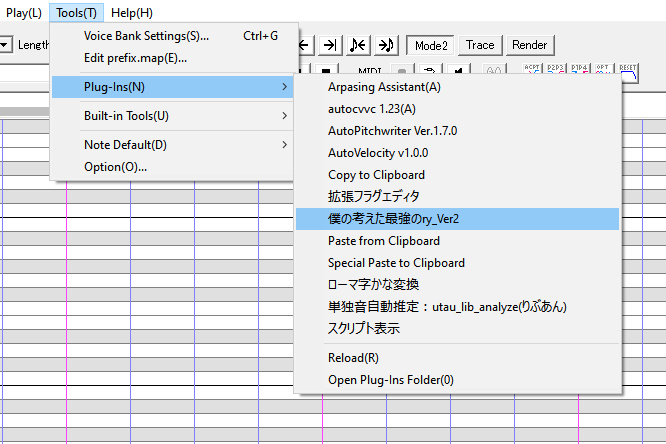
IroIro2 can then be used in UTAU by first highlighting the set of notes you wish to process with the plugin (Press CTRL + A to highlight all notes if you want to make an adjustment to the entire UST).Navigate to the following menus on the toolbar:
Tools > Plugins > 僕の考えた最強のry_Ver2 (Plugin named as listed in example screenshot, the exact name as it appears to you may vary)
When opening IroIro2 for the first time, it's possible the plugin might boot up in Japanese.
If this is not usable for you, an English option is available.
Begin by navigating to the Settings tab in the top left corner of IroIro2's window (underlined in Red).


When the Settings window appears, make sure the Language setting (Second from the bottom) is checked, you will need to confirm your changes and reboot the plugin afterwards.
These tools should make your UTAU experience smoother as you enter the practical stages of this guide, well done on your additional diligence!


3-1 • Voicebank types & starting off:
The way a voicebank can interact with UTAU is very open and versatile, as such, you cannot expect any two voicebanks to function the exact same way nor have the same features.
Some banks sing in different languages, and some languages have multiple methods of producing their output.
These "types" of voicebank can affect how it feels to use a bank, how the results will often sound and if the voicebank is compatible with an existing project file.
There is no default "starting point" regarding which type of voicebank you should use starting out, as such, experimentation is encouraged to find the right workflow for you.
There are a theoretical infinite number of voicebank types that can be designed for UTAU, for this guide, we will be covering a selection of the most prominent that you will see within the UTAU community.
CV (Japanese)

"CV" is regarded as the most lightweight and common voicebank type in UTAU with arguably the most straightforward workflow.
CV UTAUs are accomplished by dedicating a single recording to each syllable in the Japanese language, this is how CV gets its name: "Consonant-Vowel", because every sample is either a standalone vowel or a vowel with a preceding consonant.
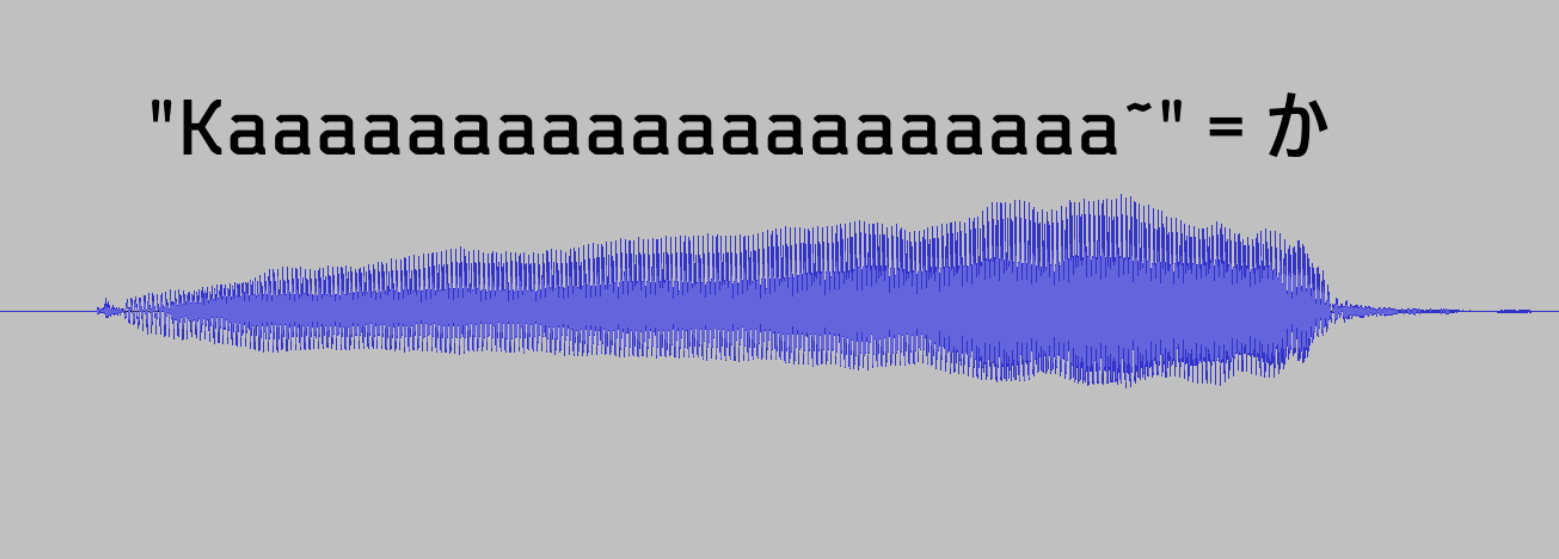
CV is often recommended for beginners thanks to its most significant strength of less visual clutter when designing USTs.
Making UST files with CV is as simple as entering single Hiragana characters into notes, with the trade-off being a less smooth phonetic output due to a lack of "inbetween" samples that blend the notes together.

VCV (Japanese)

"VCV" is the most popular voicebank method for intermediate users as it can quickly and easily produce smooth results once the user is situated with its unconventional workflow.VCV is one of many methods where recordings contain strings of multiple syllables.
In VCV, this produces Japanese syllables whereby a vowel was pronounced beforehand, this initial vowel "overlaps" with the previous note in your sequence to provide a smoother delivery within UTAU.

When entering lyrics using a VCV voicebank, each note must have not only a Hiragana character to specify a syllable, but a roman vowel inserted beforehand that matches the vowel sound of the preceding note, creating an overlap.
(Hyphen (-) is used at the start of a sequence to create a sample with no overlap)

VCV is perfectly usable for beginners who are confident in adjusting to this method of lyric entry, but for those who'd prefer the entry method to be streamlined, CV continues to be a viable option.VCV debatably possesses some limitations in customisability for Advanced users, but nevertheless, VCV is a well-rounded method that provides immediately satisfying Japanese vocals.
CVVC (Japanese)

"CVVC" is a blend of the principles learned in CV and VCV, creating a bank that is operated using the traditional CV method, but with the addition of separate "Vowel-Consonant" overlap samples.CVVC is recorded in a similar vein to VCV, but with a focus on placing VC transitions into their own standalone samples, unlike the "baked-in" approach of VCV.
USTs designed with CVVC in mind are, in effect, CV files with extras added, using Hiragana CVs as the core notes of the sequence and Roman VCs at the ends of notes to create an overlap that the user can freely control, allowing for customisable intonation, varying the output.

Newcomers can absolutely use CVVC voicebanks thanks to the added benefit that using the VCs is optional, allowing CVVC voicebanks to be used as CV vocals, but the involved process makes it arguably the most advanced form of modern Japanese synthesis in UTAU.
Arpasing (English)

While UTAU was designed with CV in mind to produce Japanese vocals, the tools provided allow for the community to design other methods and support for other languages.Arpasing (Portmanteau: ARPABET + SING) is one of multiple standardised methods of synthesising English in UTAU.
Arpasing utilises ARPABET, a form of English phonetic transcription that IDs each consonant and vowel in the Common American English dialect, users may recognise ARPABET as the phonetic system used in English voicebanks of modern commercial engines, such as Synthesizer V and VoiSona.

Arpasing uses recordings of a voice provider reading a string of English words and syllables to create a large volume of English "diphones", pairs of two phonemes (eg. "k aa" or "aa f"), similar to how CVVC utilises CVs and VCs.
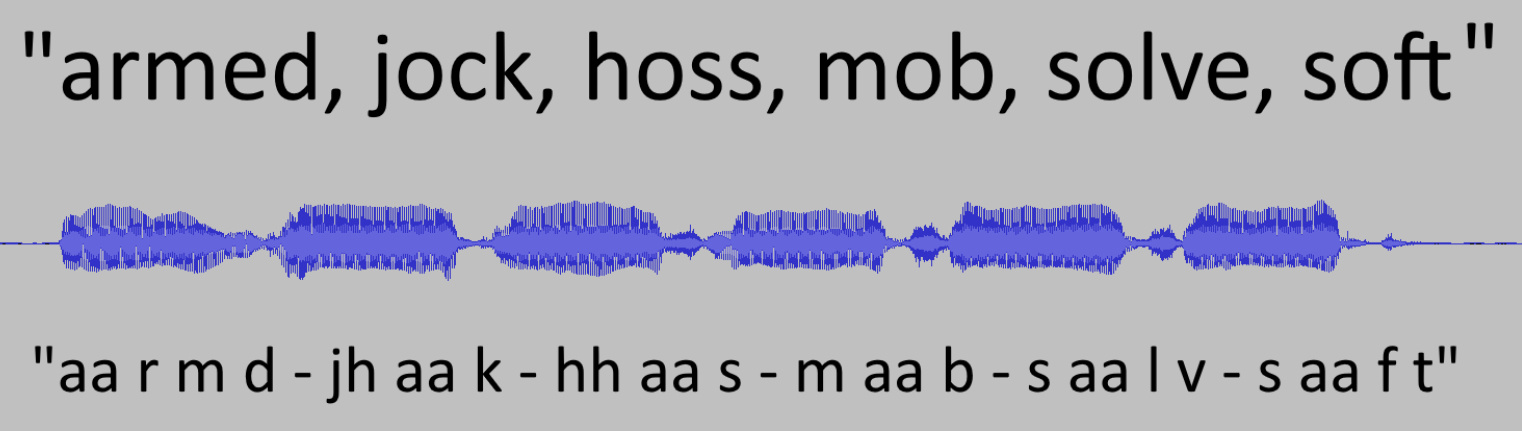
The largest obstacle of Arpasing and other English methods in UTAU is UTAU's lack of a Dictionary system.
In vocal synthesisers, a Dictionary is a database that reads conventional words entered by the user and recovers the required phonemes automatically.
Due to the lack of a Dictionary, using English voicebanks in UTAU requires the user to manually transcribe their lyrics into the voicebank's phonetic system and structure their file diphonically.
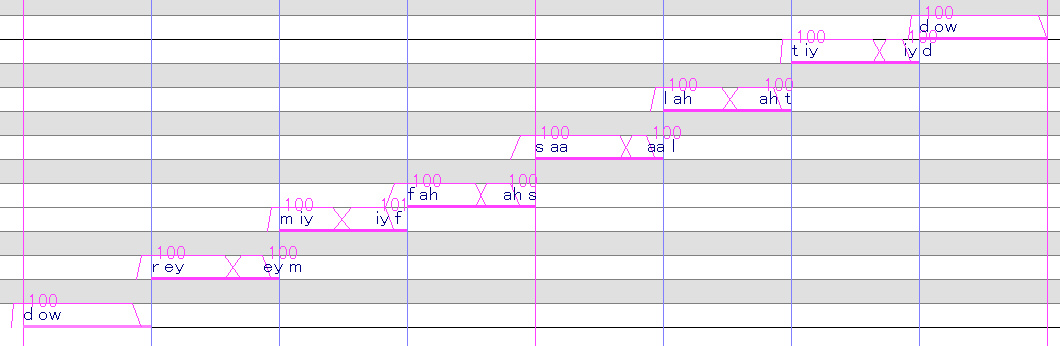
Arpasing (and English UTAUs in general) are only recommended for Intermediate and Advanced users who are confident with UTAU's interface, however, there are resources and tools available that streamline this method and reward the user with large amounts of control and customisability.
Inspecting a voicebank and its samples
Identifying the type of voicebank you are currently using and its available features is paramount to using said voicebank.
Typically, a voicebank will feature its method and features in its name and description, but you can also check this manually.
With this in mind, this section is dedicated to understanding the Voice Configurations interface, aspects of this section will come into play in later stages of the guide.
Begin by equipping your desired voicebank to your project file, then navigating to Tools > Voice Bank Settings
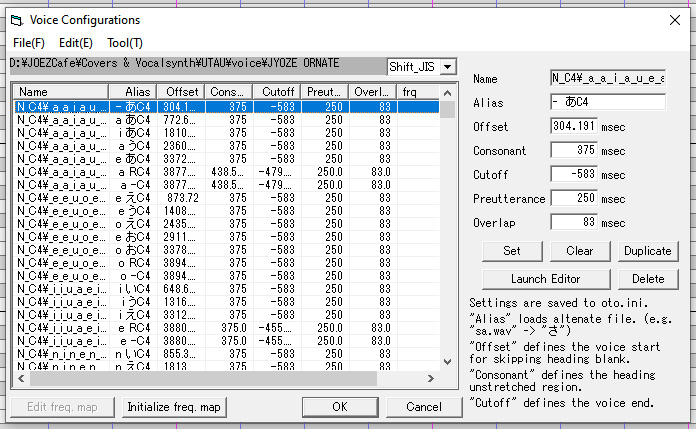
This is the Voice Configurations menu, which displays the voicebank's list of samples and their configuration, this configuration is known as an "oto", based on its file name: oto.ini.
This interface is rarely needed in typical use and changing any values or parameters is not recommended unless you are an experienced user, however, this menu acts as a reference for the voicebank you are using.The Alias field lists the names of every sample in your selected voicebank, these Aliases must be entered into notes exactly as formatted in order to recover its specified sample (eg. If the voicebank only has samples aliased in Kana, your lyrics cannot be written in Romaji).If you find your chosen voicebank is unable to sing the lyrics you have entered, this will commonly mean your notes do not feature any of the aliases in the voicebank's oto, or there are typos/formatting errors preventing the exact aliases from being entered.Note: Similar to the above screenshot, you may notice some Aliases with "Suffixes" at the end, such as "C4" or "↑".
These suffixes often do not need to be entered as that aspect of the Alias is handled automatically.
At this stage, your editor and voicebank are now ready to go, which means it's time to create your first project file!


3-2 • Building your base UST:
This section of the guide will walk you through the universal process of constructing your blank UST, regardless of which voicebank you are using, any additional tweaks needed to ensure your vocal is compatible come later in the process.Before starting, ensure that your vocalist is equipped using the Project Property menu, as shown in prior sections.
Importing MIDI
USTs can be created by hand in UTAU itself, and this guide will at a later stage explore the edit functions UTAU has available, however, it is highly recommended as a starting point that your file is an imported MIDI you created in a Digital Audio Workstation (DAW).
MIDI sequences are files of raw notation data made using a DAW, such as FL Studio or Studio One.
Charting a MIDI alone takes some amount of practice for newcomers, to start, import the song you wish to create vocals for into your DAW, sync its tempo, and then follow along to the audio with a generic instrument track, ensuring its aligned to your tempo.

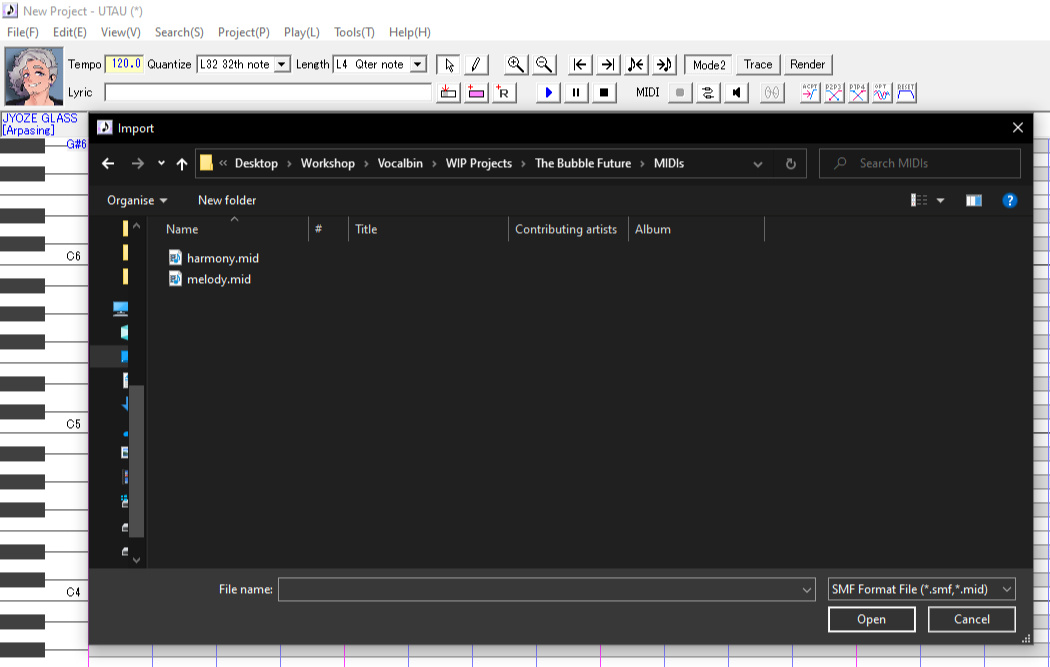
With your MIDI charted and exported, open UTAU and navigate to File > Import.
In the following Import window, select your MIDI file.Note: UTAU does not have a track system and only allows for one vocal track per project file. At this stage, only import one track from one MIDI.
MIDI sequences can consist of multiple tracks, upon importing your MIDI, UTAU will ask which track you wish to import.
Click on your desired track, then OK.
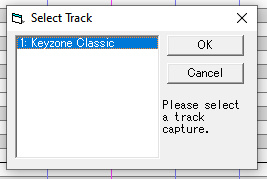
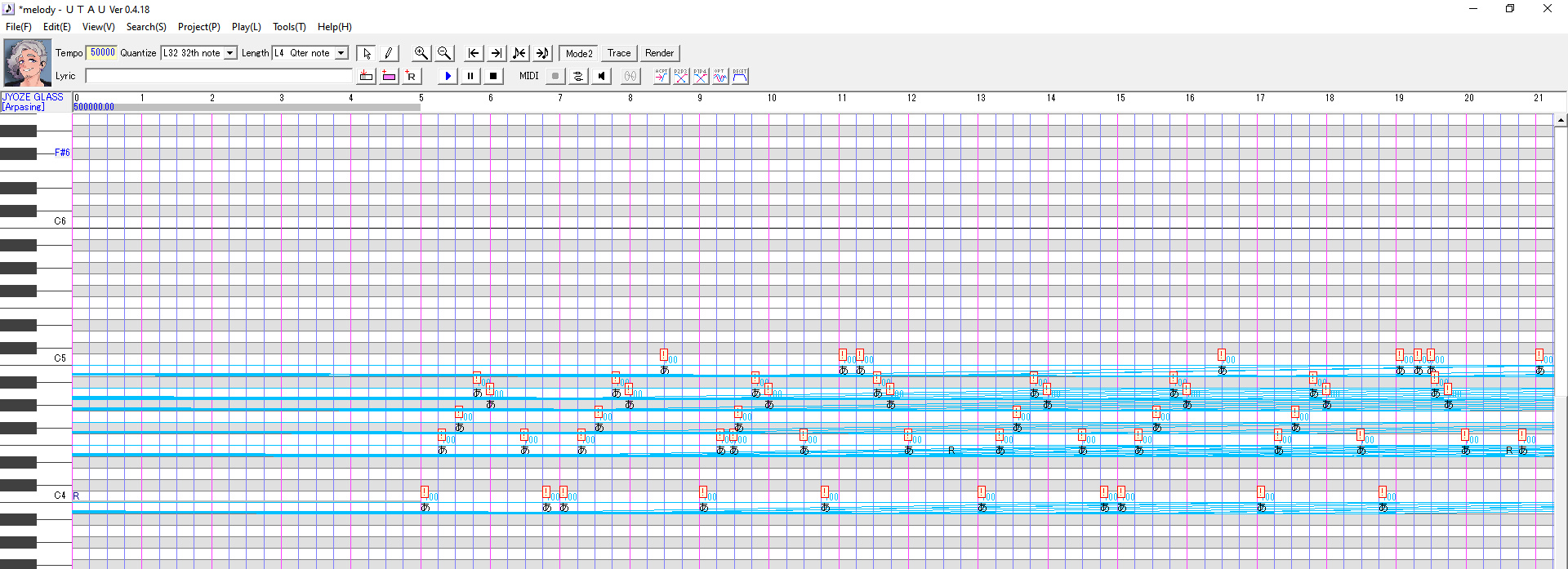
Depending on the tempo data attached to your MIDI, UTAU is prone to a very common import error that performs the following:
• Tempo is listed as 50,000.
• Notes on-screen will appear distorted and have multiple !.
Fortunately, this error is very easy to fix.

Navigate to the blue tempo marker in the top-left corner of the viewport, Right Click this number and
select "Remove Tempo Marker".
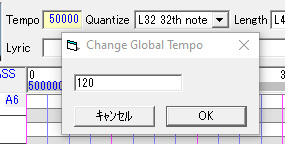
With the blue tempo marker now deleted, Double Click the yellow tempo box and change the file's Global Tempo to the tempo of your song.Do note that while UTAU allows for changes in tempo partway through your sequence, you cannot change time signature and must stay in 4/4.
Foreword: Editor techniques
If you have made your base UST using the MIDI import process, your base UST is now complete, nevertheless, continuing this section of the guide is recommended.This latter section will now go over charting USTs by hand, utilising techniques that will come in handy during the editing process, even if you imported.
Enabling MIDI preview
This process is for users who wish to preview notes in UTAU's piano roll as they chart.
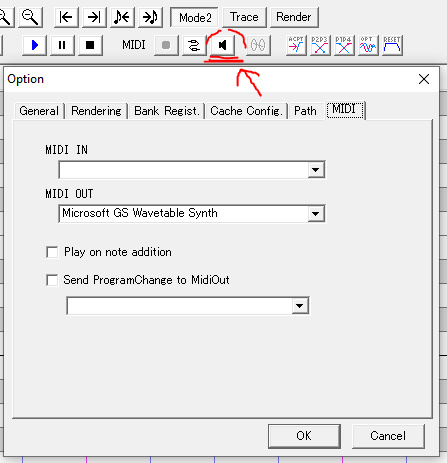
Navigate to Tools > Option on UTAU's top function bar, then change to the "MIDI" tab in UTAU's Options window.Ensure the MIDI OUT is set to Microsoft GS Wavetable Synth, then click OK.
Afterwards, click on the 🔈 icon (highlighted in Red).Your piano roll will now play piano tones to the respective key you selected.
Manual notation + the magnetic timeline
This section explores notating within UTAU itself, a process that can be bypassed through MIDI import, but the process of which is helpful to learn in order to make edits to your UST later in the process.UTAU uses a magnetic timeline.
This means that notes in the editor automatically snap together and it is technically not possible to make gaps in your sequence or reposition your notes freely.
In this stage, we will be not only learning manual techniques with UTAU, but learning how these are applied within the context of the magnetic timeline.
Feel free to open UTAU on your desktop right now to follow along with the guide and provide yourself with a clear tangible example of each step.Tip: Hold CTRL and scroll up with your mouse to make the notes larger!
Pencil tool
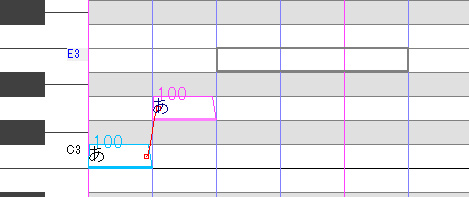
With the Pencil tool selected, click and drag across the timeline to create new notes. In digital vocals, one note represents one syllable or a significant change in pitch.In this example, the grey box is a note we are in the process of creating.You will notice when placing new notes at the end of your sequence that the new note will always "snap" directly to the note that came before it, no matter where you draw the note length.
Note: UTAU is automatically Quantised (or "grid snapped").
You can adjust how broad or precise this quantisation is by navigating to the "Quantize" dropdown list on the top toolbar.
"L32 32th note" is recommended for newcomers, followed by "L64 64th note" for advanced edits in more particular voicebank types, such as CVVC and Arpasing.
If you specify a new note midway through a sequence, UTAU will take any notes the new note overlaps with and all following notes and "push" them further down the sequence.
The existing notes will be pushed down to the length of the new note, so keep in mind how new additions can impact the timing of your UST.Eg. If the notes in your sequence are on-beat, and then you create a new note that is a half-beat long, all following notes will now be off-beat due to being pushed down a half-beat.

Rest notes
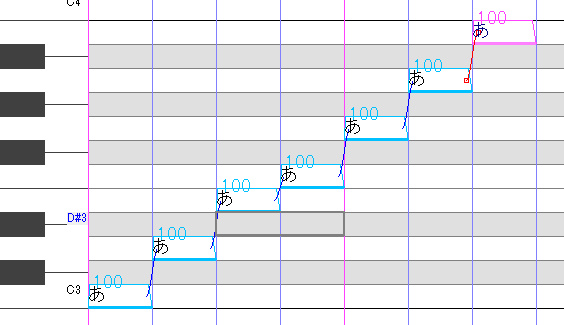
As mentioned prior, it is impossible for a UST to have gaps in its sequence due to the magnetic timeline, instead, Rest notes are used to create silence in-between notes. If you imported a MIDI sequence into UTAU, areas not containing notes will automatically become Rests.

Rests are created through the following methods, all of which are applicable in their own contexts.• Selecting the R+ icon on the top toolbar to add a Rest before your highlighted note, or at the end of the sequence.• Double clicking an existing note to change its Lyric, then changing the Lyric to "R" (Capital)• Clicking and dragging the far right hand side of a note to change its length, if you reduce the size of a note that is partway through a sequence, the new space created will be a Rest.
Notation techniques
Advanced techniques that give you even more control with the notes in your sequence, each technique having its own use.

• As previously stated in our section on Rests, clicking and dragging the right hand side of a note lets you resize it.
However, you can only extend a note to be longer if it is at the end of your sequence, otherwise you can only shorten it, with a Rest note being automatically created to fill the space you made.
This technique is the most nonintrusive way of creating new notes in your sequence.
• If you resize a note while holding down CTRL however, you will not only be able to freely adjust a note's length both ways, but the following note in the sequence will adjust its length automatically to accommodate the changes without affecting any other notes in your sequence.
This is vital for making length adjustments to notes in your sequence without affecting the timing of every note in the file.
This technique also works on Rests!


• If you resize a note while holding down SHIFT, the selected note will not only change length, but all notes following the adjusted note will move further up or further down to accommodate this change.
SHIFT-dragging can also be done with Rests, and is an extremely useful technique for re-syncing the UST should entire sections of the file be timed incorrectly.
Miscellaneous note behaviours
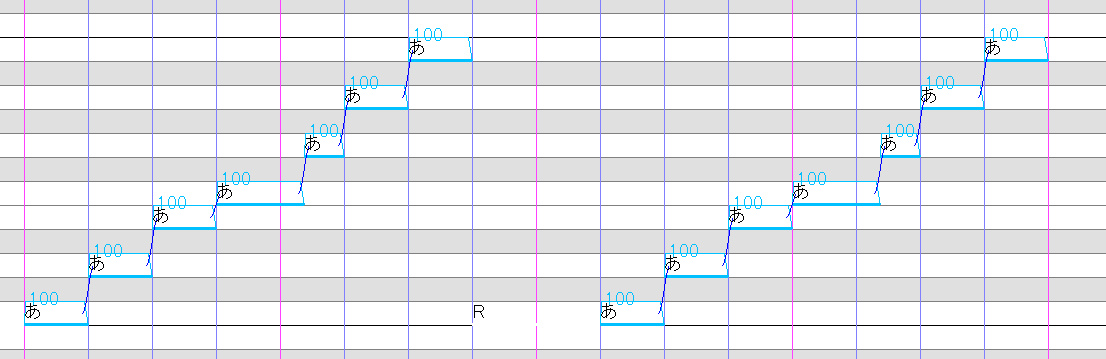
• You can only resize notes by dragging the ENDING of the note, if you want to adjust a note's STARTING point, you do so by Shift-Dragging or CTRL-Dragging the end of the note before it, even if it is a Rest.• If a note is in the wrong semitone and you wish to move it up or down, click and drag the BOLD LINE at the VERY BOTTOM of the note.
Clicking and dragging the main body of the note adjusts its Intensity, AKA, the volume level.• The aforementioned click and drag method can also be used to swap notes around if needed.
In similar vein to creating new notes partway through a UST, moving a note will "push" the following notes down in the sequence.
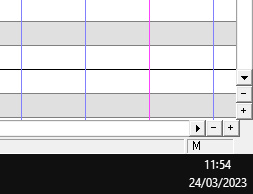
• By default, notes can only be moved one at a time, to highlight and move multiple notes at once, ensure that the blank box in the far bottom-right corner of the screen has an "M" inside of it, if not, simply click it to enable Multi-Editing.
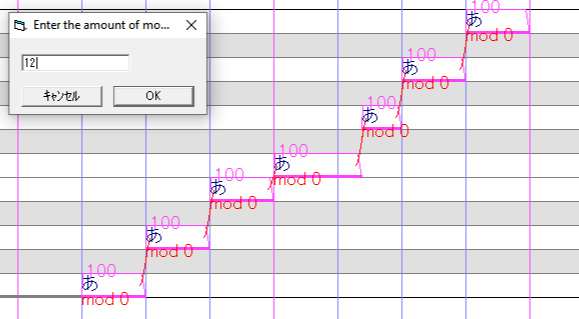
• If you would like to move an entire selection of notes up or down your piano roll (eg. to change the key or octave of your file), simply highlight all the notes you wish to adjust, then navigate to Edit > Move Region By Number.
Positive values ("12") increase, while negative values ("-12") decrease.
Finishing touch - formatting your notes
At this stage, you should have a fully synced and notated UST file that is ready for lyric entry and tuning!
Before moving onto those steps however, these are some important finishing touches that should be done first.Highlight all notes in your sequence using CTRL+A, then Right Click any note and navigate to Region Property.
This opens the Note Properties window, which is a common tool you will see a lot in the UST process.
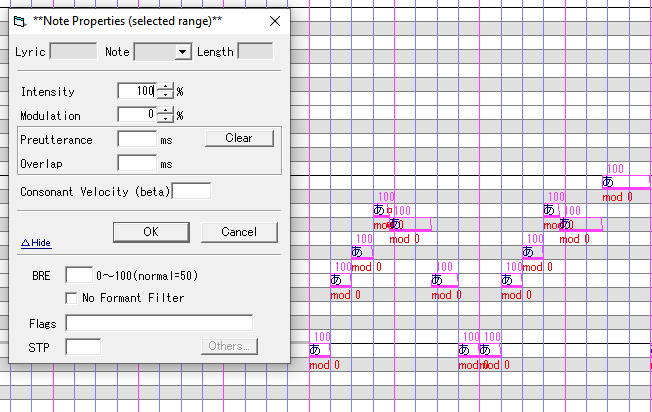
Carry out the following in this menu:• Set Intensity to 100, the default volume level.• Set Modulation to 0, Modulation is a parameter in UTAU that sets the intensity of UTAU's pitch correction system.
0 is its strongest, while 100 is its most relaxed.
Mod 0 is recommended as the default at all times in order to ensure your voicebank sings in key.
Important Note: You'll want to be frequently checking the Modulation on your notes as new notes created during the process may not be created with Mod 0 as the default value, to check as you edit your UST, press Z on your keyboard to enable the note properties display in your viewport.• Select "Clear" next to Preutterance and Overlap, these are timing values derived from your voicebank's oto, clearing ensures the notes do not have any pre-existing values.• Ensure that "STP" is completely blank (the box must be White, not Grey), similar to Preutterance and Overlap, this ensures no pre-existing timing values are embedded into the notes themselves.After these steps, click OK, your blank UST is now ready to use.
Markers
You can place two types of Markers on your UST to aid in navigation and timing:
• Labels, reference points that let you jump or "fast travel" to sections of your file without excessively scrolling.
• Tempo Markers, for creating changes in tempo in your sequence, please note once again that you cannot change the time siganture of your file in UTAU and are fixed onto 4/4.To place either type of marker, right click the Tempo Timeline above UTAU's viewport.
Selecting the top half creates Labels, while selecting the bottom half creates Tempo Markers.When a marker is created, it is attached to the note directly below it in your UST, making that note the starting point of the marker's effects.
For example, if you want a tempo change to occur on-beat, make sure it is attached to an on-beat note.
Markers can also be attached to Rests.

Thus concludes the base-UST process!


3-3 • Lyric Entry:
This section covers universal Lyric entry, how to identify if an Alias is being recognised in your UST, and blending your Lyrics into a smooth vocal phrase.
These are universal techniques that will come into play regardless of which voicebank method you choose to use, so keep them in mind when you move onto the respective guide for each method.As explained in previous sections, a voicebank consists of a selection of samples, all of which are Aliased.
For a voicebank to sing, each note must contain a valid Alias as its Lyric.
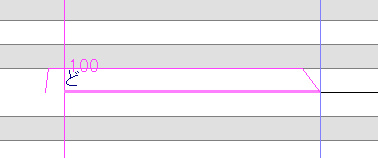
Lyric entry is performed by double clicking a note, entering the desired Alias as a Lyric, and then pressing Enter to confirm.A note in UTAU consists of two major sections:
• The bold line at the bottom of the note is the note's length, the length of this line dictates the start and end point of the note and should be considered when timing/quantising the notation of your UST.
• The thin line surrounding the note represents the Envelope, which is how the audio of the sample behaves when the note activates.In the above example, the Envelope begins before the note itself, suggesting that some amount of sound is going to play before the note actually begins.
This initial sound before the note is called the Overlap, a small chunk of the recording which plays briefly before the note itself to lead into its main pitch, such as a consonant sound.As you change the Lyric of a note, you will notice the Overlap change accordingly to match the specified Overlap in the voicebank's oto...

...while to contrast, if you write an invalid Lyric into a note (above example), there will be no overlap, as it doesn't match any of the Aliases in the oto.This means you can use the changing overlap to determine if your entered Lyric matches any of the Aliases in your voicebank, utilise this technique in your Lyric entry to ensure your file is fully compatible with your chosen voicebank.If you're certain you have entered a Lyric correctly, but there is still no Overlap or audio, you can always navigate to Tools > Voice Bank Settings to check if the Alias you're looking for is formatted differently to how you entered it.
Blending your Lyrics
Once you have a UST that is fully formatted to your chosen voicebank, the next step is to blend your notes for a smoother output, done through
this toolbar at the top of the UTAU interface:
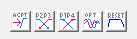
These shortcuts perform changes to the envelopes in your sequence and how they interact with one-another.
In general use, you will only be utilising two:
• RESET - Restores notes to their default timing values in accordance with their respective Alias.
• P2P3 - Crossfades adjacent notes.Once you have a finished sequence with Lyrics, highlight the phrase (or the entire UST with CTRL+A),
then select RESET, followed by P2P3.
This will allow your notes to "ease" into one-another for improved clarity.Future points in this guide will refer to this as the RESET + P2P3 technique.Note: If a note isn't responding to RESET or P2P3, there is a chance it may have an STP value.
This occurs in some notes, particularly when ACPT (the first shortcut in the above menu) is selected, which locks timing values onto a note, even if the Lyric or Voicebank has been changed.
To fix this, right click the note, enter the Note Properties and make sure the STP box is empty (White, not Grey).
Which means we can move onto the entry process, the sections following this will guide you through the unique steps for each voicebank type.


3-4 • CV (Japanese):
If you are reading this section of the guide, you should have an understanding of the following:
• The unique qualities of CV compared to other voicebank types.
• How to create a base UST file from scratch.
• The importance of Aliases when entering Lyrics and using the RESET + P2P3 technique.

We will now be entering Lyrics and formatting notes in a way that is optimal for CV voicebanks.CV voicebanks are most commonly "Kana-Aliased", requiring you place one Hiragana character (Japanese syllable) into each note.
If a voicebank is "Romaji-Aliased", you can also enter your Lyrics in Romaji.Once your Lyrics are entered and you have confirmed all notes use correct Aliases, the bulk of your CV usage is complete!
You have made a significant stride in your use of the UTAU software.To preview a vocal phrase, highlight multiple notes by clicking and dragging, then press Play or Space Bar, your sampler will then render the notes you have selected and play them back to you.As previously mentioned, CV voicebanks are generally choppier in their vocal clarity due to the lack of overlap samples that allow pronunciation to blend seamlessly.
To alleviate CV's limitations, blend your notes using the RESET + P2P3 technique.
Further smoothness with the Vowel Crossfade tool
For further clarity with CV voicebanks, UTAU contains a built-in Vowel Crossfade tool, allowing standalone vowel sounds to blend without cutting or skipping.
This step should ideally be done after you've formatted your UST with the RESET + P2P3 method.To begin, highlight a vocal phrase where you have adjacent vowels (or highlight the entire UST with CTRL+A, then press U on your keyboard to open the Vowel Crossfade menu.
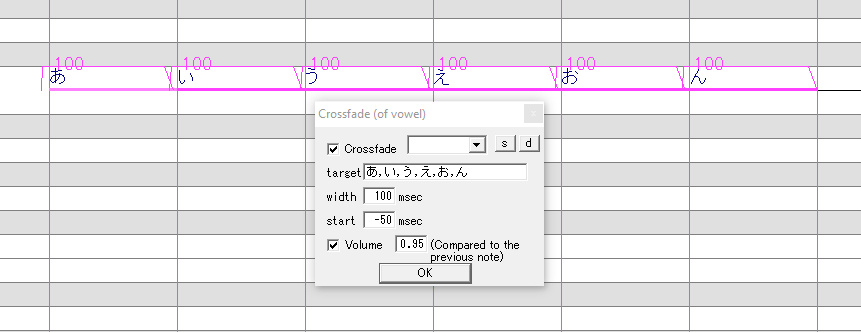
Before clicking OK, ensure the following:
• Crossfade is checked and enabled.
• The six Japanese vowels are listed in the "target" zone.
eg. (あ,い,う,え,お,ん)
• If you are using Romaji instead of Kana, be sure to add the Romaji equivalent of the six Japanese vowels to the "target" zone.
eg. (あ,い,う,え,お,ん,a,i,u,e,o,n)
• Volume is checked and enabled.Upon clicking OK, adjacent vowels in your sequence will crossfade, and the Volume parameter of the tool will decrease the Intensity of each succeeding note to add a natural release to the sustain.

Advanced: Making voiceless samples in CV
Represented in its name, CV samples are consonants followed by a continuous vowel sound, but there are occasions where you want a standalone consonant sound to string two consonants into each other.
For example: A vocal phrase in your file has your voicebank sing "bo ku no",
but you wish to reduce the "u" sound in "ku" to make it a standalone "k".
Method 1 - Note resizing

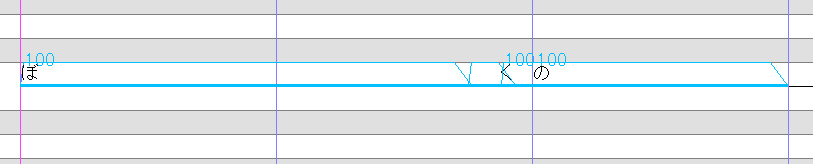
A simpler approach.
Just CTRL-drag the end of the preceding note, shrinking the prospective voiceless sample down until it is a similar size to the overlap of the following note.
In this example, "ku" will only play in the lead-up to "no", creating a brief "k" sound.
Method 2 - Envelope editing

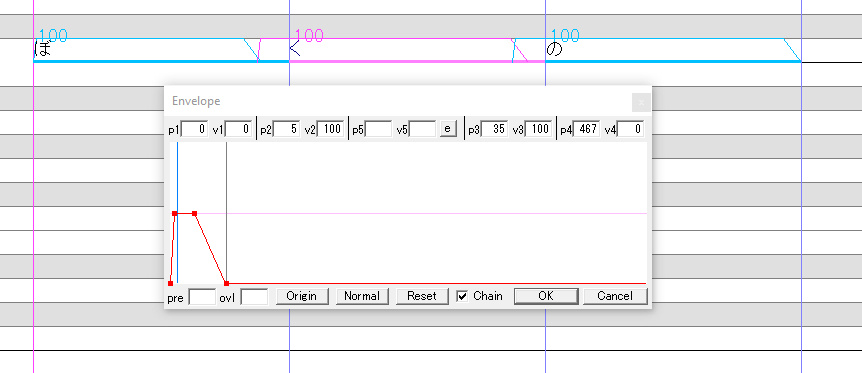

A more hands-on, versatile approach, particularly if you wish to END a vocal phrase on a consonant.
To begin, right click the note you wish to make voiceless, then navigate to the Envelope menu.This menu allows you to adjust the Envelope of a note manually.
An Envelope consists of four control-points,
labelled P1, P2, P3 & P4 from Left to Right, and represent how much ease-in and ease-out a note has through volume automation.To make a CV sample voiceless, select P4 (the control point in the bottom-right) and slide it all the way to the grey line on the left, this grey line is the preutterance, where the note itself begins.This creates an effect where only the Overlap of the note plays, which in the case of a CV sample is the consonant on its own.
These changes will be reflected on the thin line of the note.
Your CV UST is now complete!
Later guides will walk you through additional, universal processes to improve your vocal output.


3-5 • VCV (Japanese):
If you are reading this section of the guide, you should have an understanding of the following:
• The unique qualities of VCV compared to other voicebank types.
• How to create a base UST file from scratch.
• The importance of Aliases when entering Lyrics and utilising the RESET + P2P3 technique.

We will now be entering Lyrics and formatting notes in a way that is optimal for VCV voicebanks.For VCV voicebanks, each syllable you enter into a note must have a specified preceding Overlap, this being the vowel of the previous note, creating that smooth pronunciation VCV is uniquely known for.When entering a Lyric into a note, begin by specifying your Overlap in Romaji, this can be one of the six Japanese vowels (a, i, u, e, o, n) or a Hyphen (-).
Hyphens are used for the first note in the sequence to denote no overlap, making the note behave as a CV.
Follow this overlap with a space, then the Hiragana of the syllable you wish to use in the main body of the note.
Example:If I wish to have my VCV voicebank sing "せかい" (sekai),my three notes would be as follows:
• - せ = "se"
• e か = "e ka"
• a い = "a i"
Once your Lyrics are entered and you have confirmed all notes use correct Aliases, the bulk of your VCV usage is complete!
You have made a significant stride in your use of the UTAU software.To ensure the overlaps work, blend your notes using the RESET + P2P3 technique.To preview a vocal phrase, highlight multiple notes by clicking and dragging, then press Play or Space Bar, your sampler will then render the notes you have selected and play them back to you.
Advanced: Making voiceless samples in VCV
Represented in its name, VCV samples end with a continuous vowel sound, but there are occasions where you want a standalone consonant sound to string two consonants into each other.
For example: A vocal phrase in your file has your voicebank sing "bo ku no",
but you wish to reduce the "u" sound in "ku" to make it a standalone "k".
Method 1 - Note resizing


A simpler approach.
Just CTRL-drag the end of the preceding note, shrinking the prospective voiceless sample down until it is a similar size to the overlap of the following note.
In this example, "ku" will only play in the lead-up to "no", creating a brief "k" sound.
Method 2 - Envelope editing
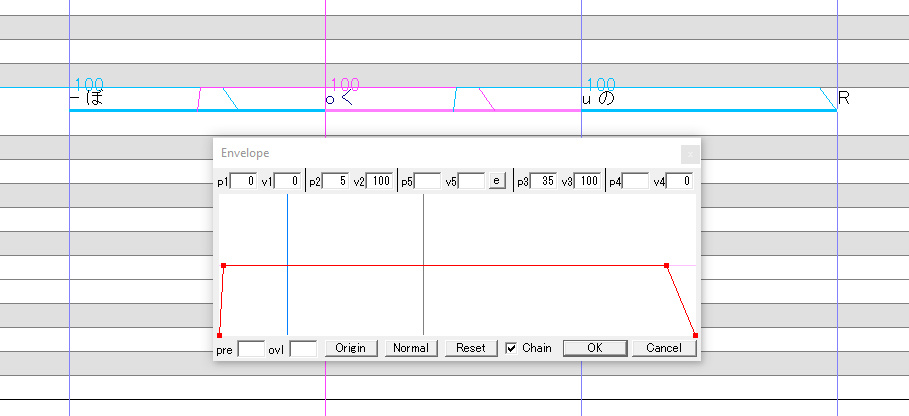
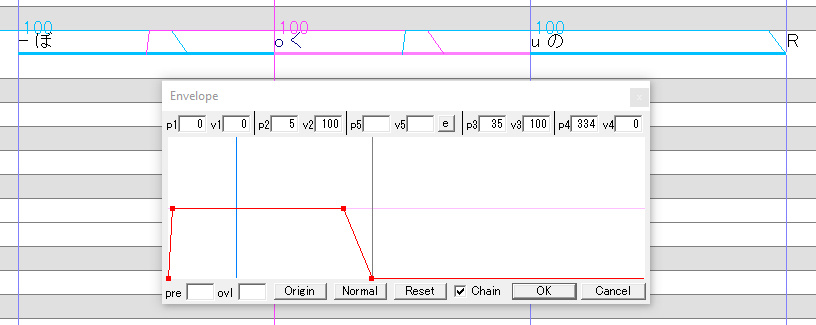
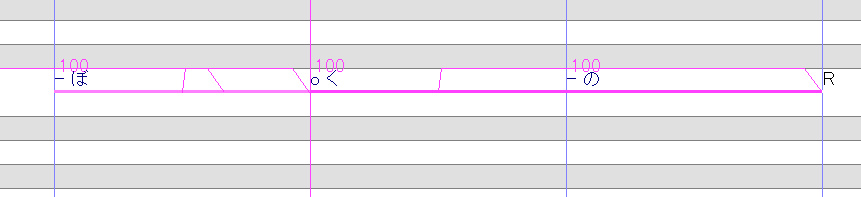
A more hands-on, versatile approach, particularly if you wish to END a vocal phrase on a consonant.
To begin, right click the note you wish to make voiceless, then navigate to the Envelope menu.This menu allows you to adjust the Envelope of a note manually.
An Envelope consists of four control-points,
labelled P1, P2, P3 & P4 from Left to Right, and represent how much ease-in and ease-out a note has through volume automation.To make a CV sample voiceless, select P4 (the control point in the bottom-right) and slide it all the way to the grey line on the left, this grey line is the preutterance, where the note itself begins.This creates an effect where only the Overlap of the note plays, which in the case of a CV sample is the consonant on its own.
These changes will be reflected on the thin line of the note.Lastly, change the Lyric of the succeeding note to an Alias with a Hyphen (-) Overlap, eliminating the vowel from the sequence.
Your VCV UST is now complete!
Later guides will walk you through additional, universal processes to improve your vocal output.


3-6 • CVVC (Japanese):
CVVC is a unique voicebank method as it is effectively CV with additional samples.
As such, it is recommended that you read 3-4 • CV (Japanese) beforehand.To streamline this CVVC guide, we will start with a CV UST that we will change into CVVC.
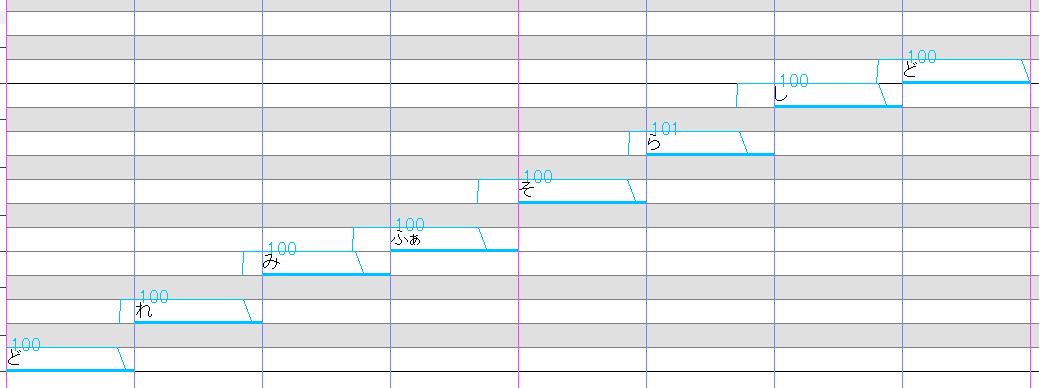

• Begin by shortening each CV in the sequence to create a Rest after each note.
Ideally, each Rest should be roughly the length of the following note's Overlap.
If you wish to make your Rests even smaller, set your Quantize setting to "L64 64th note".
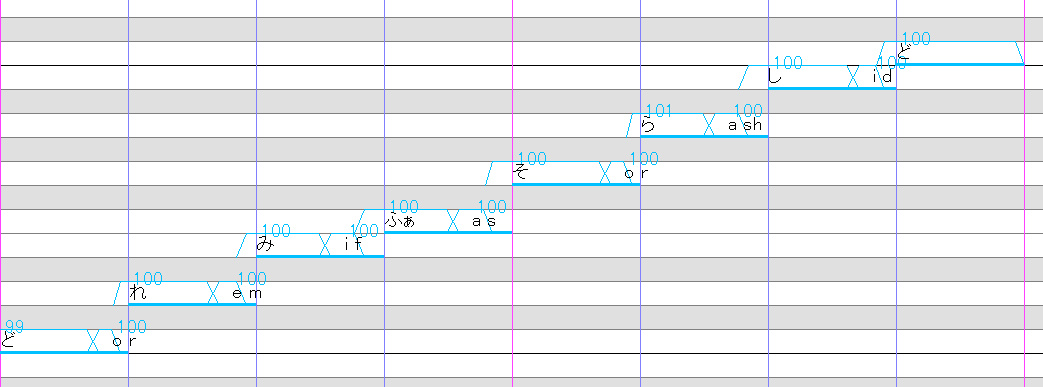
• Double click each Rest to replace its Lyric with the Alias of a VC in Romaji.
As the name suggests, you want to enter the Vowel of the previous note, a Space, then the Consonant of the following note.• If the succeeding note in an area of your sequence is a standalone Vowel, utilise a VV in place of a VC (eg. i あ).
If the CVVC bank you are using does not have VVs, remove the Overlap sample and blend the two main notes normally.• Make sure the first Lyric in your sequence has a Hyphen (-) at the beginning of its Alias, this makes the note utilise a special "Opening" version of that syllable for starting a vocal phrase naturally.
If the CVVC bank you are using does not utilise Hyphen samples, utilise the ordinary samples without Hyphens instead.Example: If the phrase in your sequence is:
ど/do - れ/re - み/mi - ふぁ/faThen the same sequence in CVVC becomes:
- ど - o r - れ - e m - み - i f - ふぁ• Blend your notes using the RESET + P2P3 technique.You now have a CVVC formatted UST!
From here, you can freely use CTRL Dragging to adjust the size of the VC's in your sequence.
Doing so emphasises or diminishes the transition between notes, allowing for a more dynamic pronunciation and delivery.
Your CVVC UST is now complete!
Later guides will walk you through additional, universal processes to improve your vocal output.


3-7 • Arpasing (English):
If you are reading this section of the guide, you should have an understanding of the following:
• How to create a base UST file from scratch.
• The importance of Aliases when entering Lyrics and utilising the RESET + P2P3 technique.Arpasing requires a bit of foreknowledge and planning, so in this section, we will be introducing a few bits of theory before entering our lyrics.
Understanding ARPABET
ARPABET is the set of phonetic transcription codes Arpasing uses to make writing English lyrics possible within UTAU.
Essentially, each phoneme is a unique ID that describes a specific vowel or consonant in the Common American English dialect.
As stated previously, Arpasing and other methods of English in UTAU do not have a Dictionary system, in other words, UTAU has no means of recognising English words and you must assemble the vocals by hand using ARPABET.The following is an Arpabet table that can be referred to as you use Arpasing, to which it will grow familiar over time.
Notice how the phonemes do not always align with the way the associated example word is spelt.
Vowels
| Phoneme | Example Word |
|---|---|
| aa | palm |
| aa r | star |
| ae | bat |
| ah | but |
| ao | bought |
| aw | out |
| ax | rental |
| ay | bite |
| eh | bet |
| er | bird |
| ey | hey |
| ih | bit |
| iy | beat |
| ow | boat |
| oy | boy |
| uh | book |
| uw | boot |
Consonants
| Phoneme | Example Word |
|---|---|
| b | buy |
| ch | charm |
| d | die |
| dh | the |
| dx | better |
| f | fight |
| g | guy |
| hh | high |
| jh | just |
| k | kite |
| l | lie |
| m | my |
| n | nose |
| ng | sing |
| p | pie |
| r | risk |
| s | say |
| sh | shy |
| t | tie |
| th | thing |
| v | vote |
| w | wise |
| y | yes |
| z | zoo |
| zh | measure |
CV Entry
Arpasing USTs start out with a blank base UST just like Japanese voicebank methods, with a note for each individual syllable.

Arpasing is what's known as a diphonic voicebank type, which means each Alias is a pair of ARPABET phonemes.
To begin an Arpasing UST, you must begin by identifying the CVs in your lyrics - diphones where a single Consonant is followed by a single Vowel.
To demonstrate, if our lyrics were:
"Twinkle, twinkle, little star"and we converted our lyrics into ARPABET:
"t w ih ng - k ah l - t w ih ng - k ah l - l ih - dx ah l - s t aa r"The phonemes highlighted in Red would be our CV diphones.So our 7-note sequence should use these 7 diphones, with a space between the two phonemes (example below).

When converting English into ARPABET, it's important to choose phonemes that match how the word is ideally pronounced rather than spelt, so it's common to replace or even omitt certain phonemes for a more relaxed, "American" sound.
In the above example, while the word "Little" is spelt with two Ts, we will be using the phoneme [dx] to deliver a soft, alveolar pronunciation of that syllable.In addition, notice how the CVs of each word are not necessarily the first two phonemes in a word or syllable, such as "Twinkle" and "Star".
Any diphones that are not a part of the CVs will be accounted for later, for now, this is how English words of any complexity are timed correctly in a UST sequence.
What if a Lyric starts with just a vowel and no consonants?
If the whole phrase begins on a Vowel:
Use the vowel on its own with a Hyphen (-) placed beforehand, such as [- ay], for a special "Voice Opening" sample, known as a "- V".If the new syllable is partway through the sequence with another vowel sound beforehand:
Utilise a "VV", which is a diphone that uses two Vowels, such as [ay er].If the previous word in the lyrics has an ending consonant:
Use that consonant as part of the CV.
For example, if the lyrics were "Hands up", and we transcribed them into ARPABET as "hh ae n z - ah p", our CV diphones are [hh ae] and [z ah].
Overlaps
With the CVs placed, the UST now has the structure to add in the rest of the phonetics of your Lyrics. So long as the beginning of the CVs stay in their current positions, your UST will be timed properly.
With this in mind, we will now be adding additional diphones to our sequence to make fully comprehensible English words, working in chronological order of the file (Left to Right).
In the example below, the phonemes highlighted in Red are currently absent from the UST."t w ih ng - k ah l - t w ih ng - k ah l - l ih - dx ah l - s t aa r"These phonemes were not part of the CVs, so will require additional notes for additional samples.
CCs
As covered prior, "Twinkle" begins with an extra consonant before its first CV, this means we want to insert a CC (Consonant - Consonant) sample that takes place before [w ih], adding in [t] and blending it with [w].
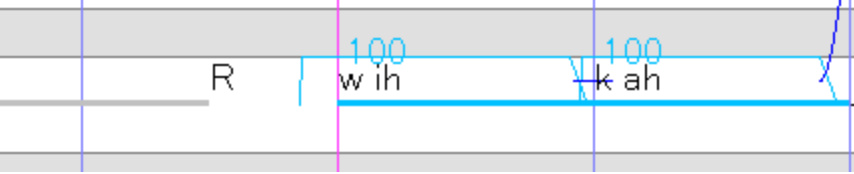
• To begin, create a small Rest before [w ih], this can be done by either inserting a new note, or by shortening the note prior to [w ih] to create a gap.
• Double click the Rest to change its Lyric to [t w].
Notice again how rhythmically, the CC is playing before the beat, while the CV will play ON the beat - the CV represents the note itself, while the CC is just an extra sample to aid pronunciation.
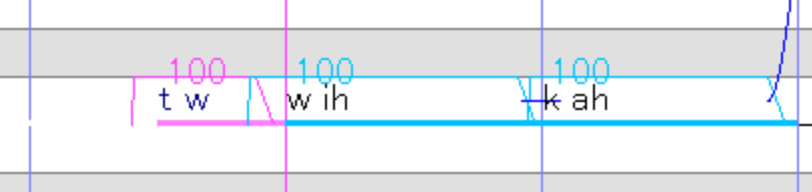

• Freely adjust the length of the CC by CTRL Dragging the end of the Rest before [t w], this will change the level of emphasis and intonation.
• In some scenarios, you will want to insert a - C at the beginning of a phrase to add extra emphasis or a natural opening sound to the voice.
This works best with soft consonants, such as [sh] or [y].

VCs
If you are ever in doubt about if your Arpasing phrase needs more samples, the general rule of thumb is to accomplish a "Chain Link" effect in your UST, whereby each phoneme is introduced as the main sample of one note, and then leads off into the overlap of the following, this principle will be familiar to those who understand the workflow of CVVC (Japanese).With this in mind, the most prominent Overlaps Arpasing utilises are VCs, which along with CCs act as the connective tissue to blend your CVs.

• If we want to finish the first syllable of "Twinkle", we will need to add [ng] in a way that blends our CVs, [w ih] and [k ah].
• This means we will need two more samples, one that introduces [ng] and another that uses [ng] as the Overlap into [k], so we will create two Rests between the CVs.
• Change the Lyrics of these two rest notes
to [ih ng] and [ng k], and our first syllable is complete!

This process is then repeated across the entire vocal phrase, each diphone can be freely adjusted to fix intonation and delivery (so long as the CVs remain in their correctly timed positions).
You can then blend your diphones using the RESET + P2P3 technique.
Troubleshooting Arpasing
The remainder of this guide will now go over some troubleshooting tips, and how to circumvent potential obstacles while using Arpasing.
If a voicebank is phonetically incomplete
Arpasing is a heavily various voicebank type, Arpasing banks can take many forms and have various amounts of phonetic coverage.What this means is some Arpasing voicebanks may not have every diphone you wish to use in your sequence, and you will have to use alternative samples, this passage explores some common examples of diphone substitution.

• In this example, the Arpasing voicebank being used does not have [v oy] or [oy s] in its oto, which makes adding the Lyric "voice" a challenge, but there are some straightforward substitutions that can be made.
In this edit, we have performed the following with the samples we have available:
• The CV has been changed to [v ah] to open the voice - our closest equivalent CV.
• [v ah] then immediately changes to [oy] for the majority of the note, fixing the pronunciation of the vowel after the voice has opened.
• [oy s] has be replaced with [oy z], the closest equivalent VC that delivers a similar pronunciation.Utilise these equivalences to accomplish any missing diphones in an Arpasing voicebank.

If a voicebank does not use [dx]
[dx], also known as the Alveolar Tap is an English phonetic that allows for more fluid delivery as an alternative to [t] and [d].
If an Arpasing voicebank does not have [dx] available, this substitution can simulate it.In this example, we want to transcribe "Little" as "l ih dx ah l", using a voicebank that does not have [dx].
• In our CVs, we will substitute [dx] for [d], making our CVs [l ih] and [d ah].
• In our VCs, we will substitute [dx] for [dh], making our VCs [ih dh] and [ah l].
• This makes our sequence [l ih] [ih dh] [d ah] [ah l], the [dh] that overlaps into the [d] will soften it, simulating a [dx].
If you notice ! in your UST
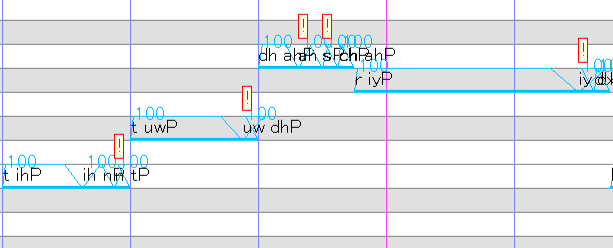
It's not uncommon in UTAU, especially when using Arpasing for ! to appear in your sequence.
This signifies a conflict in a sample's envelopes, such as it being too small to be audible.
Should you encounter this issue, try the following:
• Click the !, UTAU will attempt to correct the error.
• Make the respective note larger in size.
• Make a personal judgement on if this error significantly affects the quality of your UST, if you believe the error to be negligible.
Your Arpasing UST is now complete!
Later guides will walk you through additional, universal processes to improve your vocal output.


3-8 • VCCV (English):
In progress, come back soon!

4-1 • Using & fitting community USTs:
Creating USTs is a lengthy and complicated process, but nevertheless recommended as a means of learning how to operate voicebanks of different types and optimise your vocal output.
When covering existing songs, users can opt to download pre-existing UST files made by members of the UTAU community and use them as a baseline in their own work.
This section goes over how to identify the compatibility of a UST and prepare it for use with alternate voicebanks.Note: Always ensure the practice of UST etiquette when using UST files by other creators, this includes crediting the creator of the UST when publishing your derivative work and being mindful of any other rules, guidelines and boundaries the creator puts into place.Note: In addition to USTs, UTAU's project file extension, other vocal synthesizer projects, including VPR (VOCALOID 5) and SVP (Synthesizer V Studio) can be converted into UST using Utaformatix.
Is my UST compatible?
If you've read the previous guides on this site regarding identifying voicebank Aliases and making your own USTs from scratch, you'll know that voicebanks of different methods and languages have their own sample sets and Aliases that restrict the type of UST files a voicebank can read.
In other words, voicebanks are only immediately compatible with UST files of the same encoding and aliasing type (eg. a Hiragana CV voicebank will only be able to work with USTs formatted in Hiragana CV).Authors of USTs will often label the voicebank method their UST was designed for, otherwise, check the Lyrics within the UST and ensure they align with the Aliases your voicebank of choice uses.
If the two do not match, you will have to modify the file or convert it using a plugin such as iroiro2 to suit your voicebank.
(eg. Replacing the CV Lyrics in a UST with VCV Aliases to use a VCV voicebank)
Fitting
When a UST is made, it is designed with the creator's originally intended vocalist in mind, this is because notes in UTAU refer to the timing values of the original voicebank's oto.As such, if you intend to change the vocalist on a UST file, perform the following process, known as Fitting:• Check that the bulk of the UST is compatible with your voicebank in accordance with the previous subsection (ie. Using a VCV voicebank for a VCV UST), then make sure your new vocalist is equipped.• Highlight all notes with CTRL + A, then right click any note and navigate to the Properties menu.• Set Intensity to 100.• Set Modulation to 0.• Clear Preutterance and Overlap.• Set Consonant Velocity to 100.• Ensure BRE, Flags and STP are all entirely clear with no values (White, not Grey).• Click OK.• Perform the RESET + P2P3 technique.• Check the UST for any Aliases your current voicebank will not recognise, such as extra samples added with the original vocal in mind.
Troubleshooting: When community USTs crash UTAU
On some rare occasions, playing a UST by another creator will crash UTAU, when this occurs, this is because UTAU was unable to recover the sampler the UST originally used.
To fix this, navigate to the Project Property settings (the same menu where you select a vocalist), ensure "Use resampler.dll (Setting isn't saved to the project)" is unchecked and set Tool 1 (append) and Tool 2 (resample) to any third-party sampler of your choice.
Your UST is now ready to use!
Previous guides will walk you through making manual adjustments depending on the voice type, while later guides help with tweaks to improve your output.


4-2 • Understanding extras & pitches
UTAU voicebanks contain the necessary samples to synthesise a language, but in addition may contain extra samples that add variety, realism or versatility to your UST.
This guide goes over some common functions found in some voicebanks and how to utilise them.
Vowel endings / Releases
When a note finishes playing in UTAU, the effect can be somewhat sudden or abrupt.
Vowel endings are samples placed at the end of a vocal phrase and plays audio of the voice provider closing their voice for a more natural release.To add these, place an additional note at the end of your sequence, then enter the Roman character of the previous note's vowel, followed by a Space and a Hyphen (-).
Depending on the voicebank, the Alias may differ, such as using an R in place of the Hyphen.
Blend these two notes using the RESET + P2P3 technique.


Multi-expression voicebanks
Voicebanks will often contain additional expressions, also known as Tones, Voice Colours or Appends, alternate samples of the voice provider in a different tone of voice for more genre flexibility ie. "Power" or "Whisper".
These expressions are often distributed as separate voicebank releases, but some voicebanks have multiple expressions you can use interchangeably in one UST file.
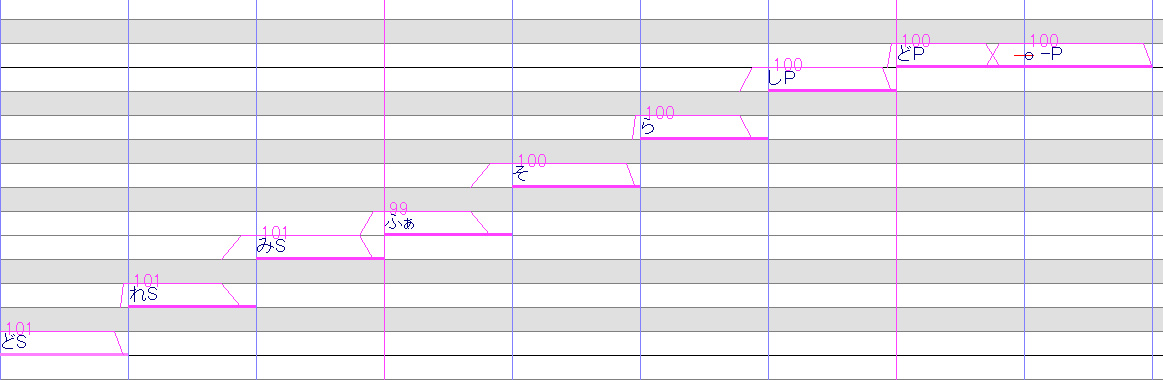
These alternate expressions depend purely on the voicebank but are most commonly used by adding a Suffix to the Lyric.
In the above example, a CV bank is being used, with the first three notes using the bank's "Soft" expression, the following three notes using the default "Natural" expression, and the last three notes using the "Power" expression.
Refer to the voicebank's distribution site, the voicebank's README file or the Voicebank Settings page to see if the bank has additional expressions or suffixes.
Understanding pitches
When a sequence is played in UTAU, the editor recovers audio recordings of a voice provider and pitch-corrects each sample to the specified note.
The trade-off with this system is the presence of increasing distortion the further away the ideal note is from the note being sung in a recording.
To counter this, some UTAU voicebanks are "Multipitch", containing multiple recorded pitches of the same samples to capture the higher and lower registers of a voice provider.
What's a Prefix Map?
Multipitch voicebanks include a file known as a Prefix Map, a table that allows UTAU to use specific pitches automatically depending on where a note is on the piano roll.

The image above is a chart demonstrating an example of a Prefix Map, this example voicebank contains three recorded pitches: D3, G3 & C4.
The Prefix Map specifies to UTAU to use the following pitches throughout the piano roll:
• Notes B3 and higher use the C4 recordings, the voice provider's higher range.
• Notes between F#3 and A#3 use the G3 recordings, the voice provider's midrange.
• Notes F3 and lower use the D3 recordings, the voice provider's lower range.
In some instances, you might want to override the Prefix Map to use a specific pitch.
This can be accomplished by editing the Prefix Map under Tools...
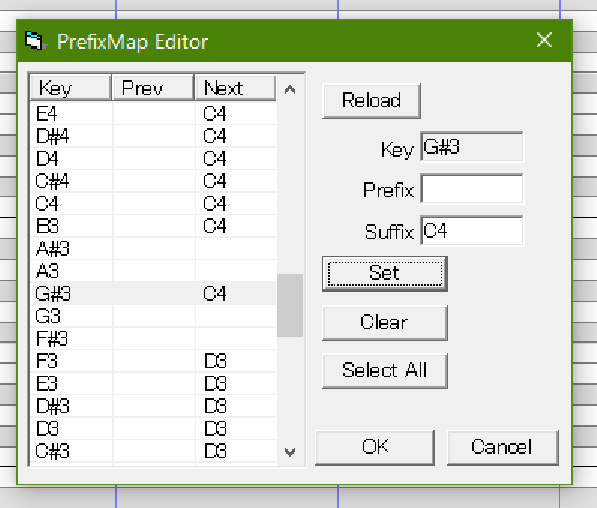

...or you can select the pitch manually by entering the exact Alias that appears on that sample.
If a pitch does not have a Suffix, such as "C4" or "↑", place "?" before the Alias as a prefix to use the voicebank's "default" pitch, such as [?せ].
This extra layer of complexity will make your USTs even richer!
Following this is adding pitch dynamics and flags to make your vocals expressive.


4-3 • Tuning, flags and rendering:
At this stage, your UST file is now structurally complete, with all notes and Lyrics in place and your voicebank singing smoothly.
The last major step is the process of "tuning", where you customise the vocals to sound expressive and unique.
This section walks you through setting up your tuning interface and how to tune your vocals.
Setup 1 - Enabling Mode2
UTAU has two modes of pitch manipulation.

Mode1 is a more manual process which involves moving individual pitch envelopes in a single note, and is not recommended...
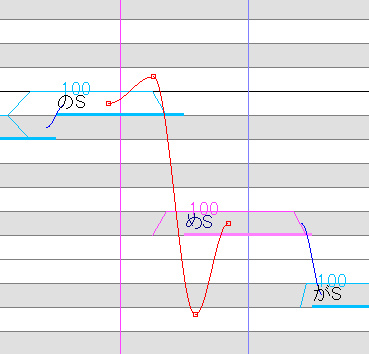
Mode2 to contrast is a more streamlined and conventional interface where you create pitch envelopes that curve into one-another, creating dynamic pitch bends for your voicebank to follow.

You can enable Mode2 by selecting the "Mode2" button in the top toolbar of UTAU's interface.
Setup 2 - Enabling Portamento
Portamento is a term in music theory that describes the gradual transition between pitches.
In UTAU, Portamento is a Mode2 parameter that enables interconnecting pitch lines between your notes.
To enable Portamento, highlight all notes in your UST with CTRL+A, right click your selection, and select Pitch.
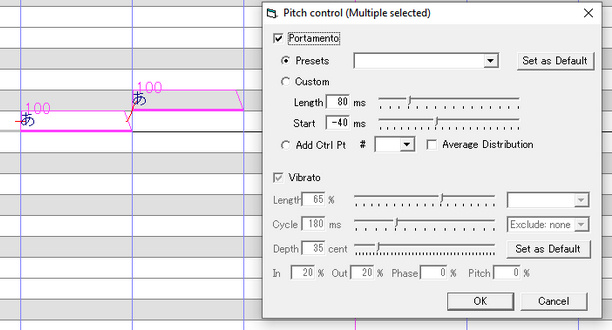

This is the Mode2 Pitch Control menu, we will be using this a lot during the tuning process.
In this menu, check the Portamento box at the top, enabling Portamento on all notes in your selection.
You can tell Portamento is enabled on a note if a red, horizontal line appears on its left hand side.Be careful toggling Portamento if there are already pitch bends on your UST you want to preserve, as doing so could erase those!
Pitch envelopes
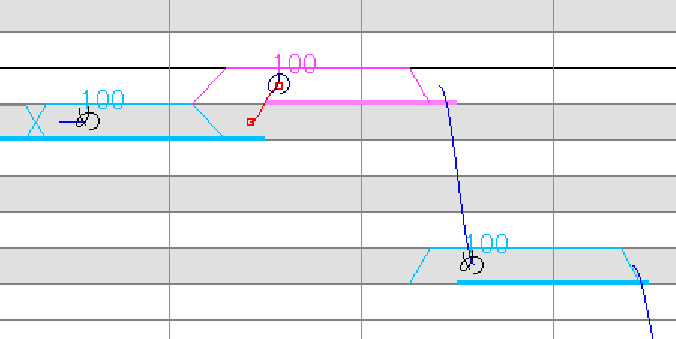
By default, each note with Portamento enabled has two envelopes at the beginning that connect itself to the pitch of the previous note.
It's here that we can add a more complex attack to bring more colour and personality to the vocals.
Right clicking a pitch envelope will bring up the pitch bend context menu.
It's here that you can change the shape of a pitch bend or create a new envelope.
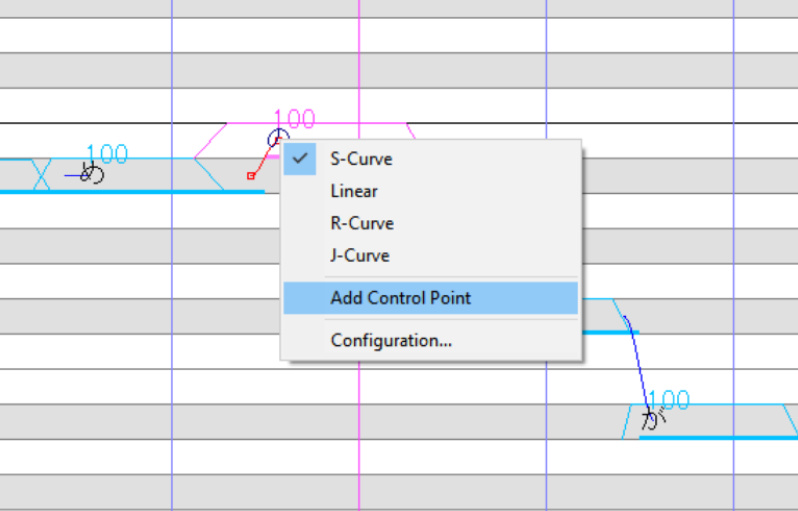
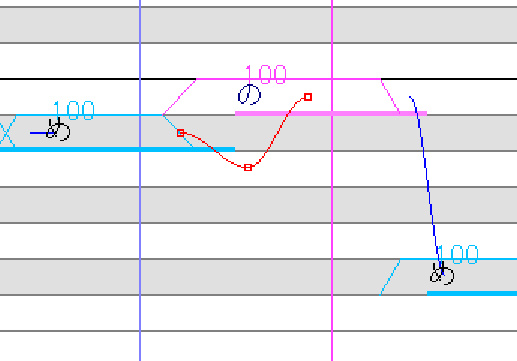
Create a new envelope by selecting "Add Control Point" or pressing A on your keyboard.
The envelope created will always appear directly in front of the envelope you selected beforehand.
Click and drag each envelope to change their position, and the lines will change shape accordingly.
You can also adjust the timing of the first envelope by moving it to earlier in your sequence, this allows the pitch bend to affect the previous note, letting you fully control the transition between the two.
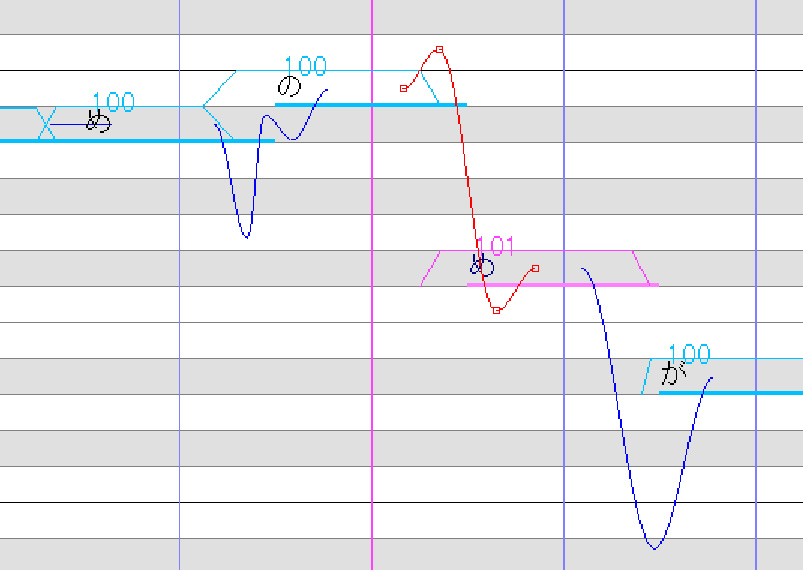
When you press Play, the voicebank will follow the pitch line as it outputs each note, leading to a change in the voicebank's singing style.
Experiment with different shapes and lines for rich sounding vocals.
Vibrato
Vibrato is the act of a vocal "wavering" in pitch.
This vocal technique sacrifices the base pitch of the note in exchange for a more dynamic and emotional sustain when used appropriately.


Access Vibrato settings by right clicking the note you wish to add Vibrato to, then going to the Mode2 Pitch Control window and checking the "Vibrato" box on the lower half of the window.
Once added to a note, the Vibrato Control will appear below a note when highlighted.
There are seven elements of the Vibrato you can adjust.

Once added to a note, the Vibrato Control will appear below a note when highlighted.
There are seven elements of the Vibrato you can adjust by clicking and dragging its respective control element.1• Offset, how far into the note the Vibrato begins.2• Phase, scrubs the vibrato left and right without moving its Offset.3• Frequency, how fast the vibrato moves between pitches.4• Fade In, the length of the vocalist's ramp-up into the vibrato.5• Fade Out, the length of the vocalist's level-out into the original pitch.6• Relative Pitch Deviation, raises and lowers the centre point of the vibrato.7• Depth, makes the vibrato taller or narrower across the piano roll, affecting the vocalist's deviation from the original pitch.
Consonant Velocity
Consonant Velocity is a parameter that allows you to shrink or expand the size of a sample's Overlap, affecting intonation.
In other words, adjusting the velocity makes the transition between two samples more sudden, or more drawn out.

The Consonant Velocity parameter can be found in Note Properties, and can be adjusted anywhere between 0 - 200.
• 0 doubles the overlap, making it longer and earlier.
• 100 is the Default overlap the sample was designed with.
• 200 halves the overlap, making it later, snappier and sudden.
These changes are then reflected in the Overlap visual on the note itself.
Flags
Flags refer to the voice parameters and effects in UTAU that let you artificially adjust the tonal quality of a vocal.
Flags can be entered per-note via. the "Flags" field in the Mode2 Note Properties window or can be applied en masse throughout the UST via. the "Rendering Options" field in the Project Configurations window.Flags are entered by inputting a character that represents a flag, followed by the positive or negative numerical value you want to set that flag to.
eg. g+3 changes the Gender Factor to +3When entering multiple flags, the flags must be written as one continuous string with no spaces.
eg. g+3Mt-20 changes the Gender Factor to +3 and the Tension to -20The following table is a list of recommended flags, keep in mind this list is not exhaustive, and some flags are exclusive to specific samplers.
| Flag | Default Value | MinMax Range | Description |
|---|---|---|---|
| g | 0 | -100 > +100 | Also known as "Gender Factor" or "Character". Adjusts the formant of the voice. Positive values make the voice more deep and rounded. Negative values make the voice more bright and nasal. |
| P | 86 | 0 > +100 | "Peak Compressor", adjusts the dynamic range of your vocals, compensating for the volume difference between samples. Higher values compress the audio further, making quiet sounds louder. Lower values allow quiet sounds to remain quiet, which is effective for reducing the prominence of smaller audio artefacts such as background noise and hard consonants. |
| e | N/A | N/A | A flag that is either enabled (added) or disabled (removed). Notes with the flag enabled will not loop the "vowel" of their samples during sustains, but will instead time-stretch the sample across the duration of the note. Ideal for voicebanks with vowel-skipping issues or when using English voicebanks for impoved sample clarity. |
| Mt | 0 | -100 > +100 | A Flag exclusive to Moresampler, adjusts the texture of a sample to simulate a change in vocal tone, similar to the Tension parameter in Synthesizer V. Higher values make the voice harsher. Lower values make the voice softer. |
Rendering and exporting
With a finished and fully customised UST, you should have some experience using playback in UTAU.
There are two methods of exporting your vocals into an audio file:• After saving your UST in its current state, simply navigate to Project > Render wav file, UTAU will then render your entire UST into audio.• For situations where you only wish to render a small portion of your file or have already played the entire file back in full.
Highlight the region you wish to play back, hit Play, then once your playback has rendered, navigate to Play > Save Last Play, your last playback will be exported without having to redo the rendering process.
Congratulations!
You now know the full process of making UTAU vocals.
Have fun <3